Library

The Library holds your team's files: the Company Brief and everything GTM makes for you, like account briefs, reports, decks and websites.
Where
Library in the sidebar
You'll need
Nothing. It fills in as you work.
Result
Your team's files in one place
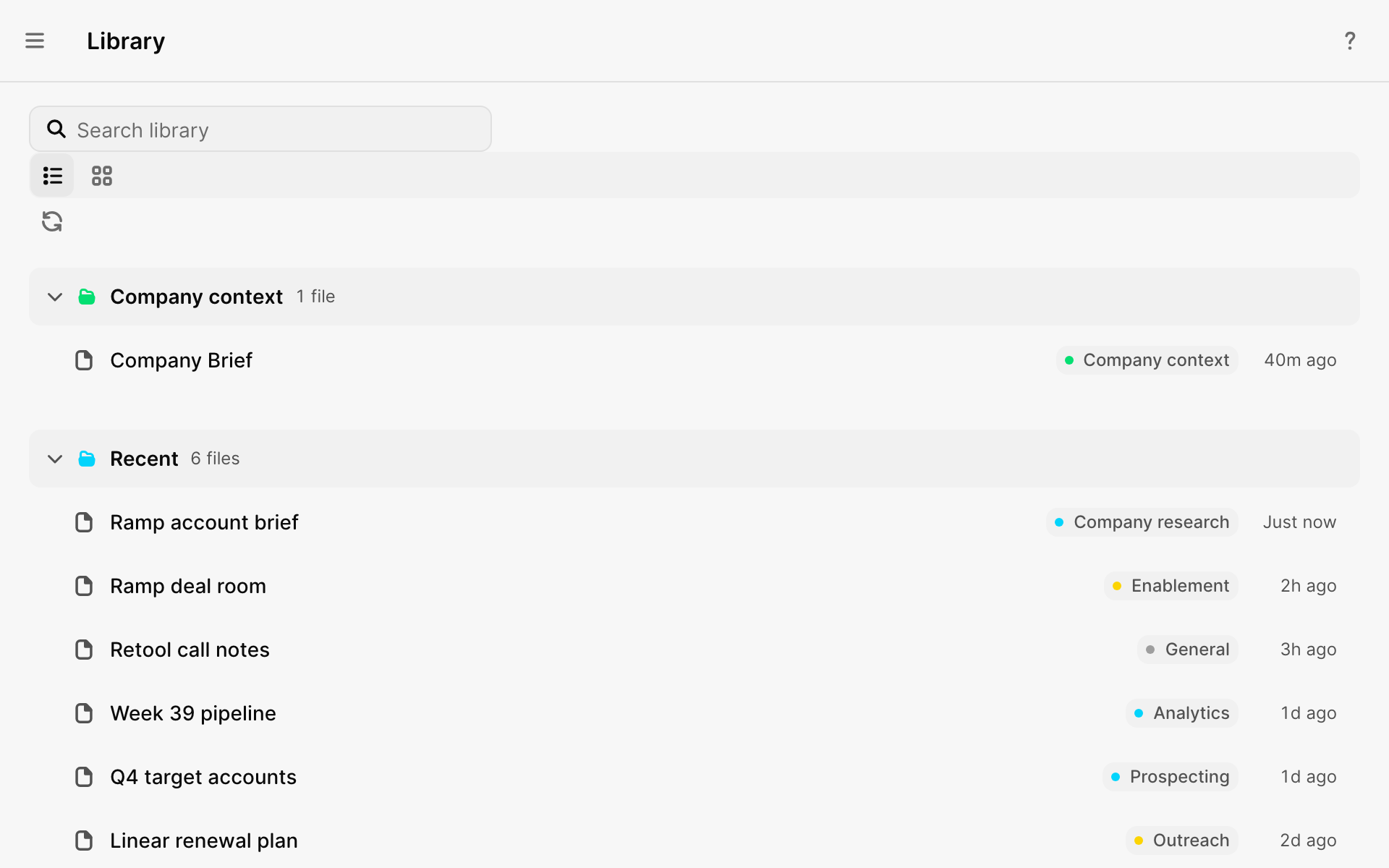
What's in it
| Kind | Examples |
|---|---|
| Company context | The Company Brief, and files you mark as company context |
| Documents and reports | Account briefs, call notes, pipeline reviews |
| Presentations and websites | Decks and sites GTM built in a chat |
| Videos and audio briefs | Videos and spoken summaries GTM made |
| Links and web pages | Pages you saved, kept as read-only snapshots |
Files a chat or agent makes are saved here on their own. Search them with Search library.
How GTM uses it
GTM uses your Company Brief automatically when it answers questions about your company. It searches your other files when they're relevant.
To make a file part of your company's background, like a pricing sheet, open its menu and select Use as company context.
Share a file
Open a file and select Share.
| General access | Who can open it |
|---|---|
| Private | Only people you add |
| Your workspace | Everyone in your workspace can open and edit it |
| Your workspace can view | Everyone in your workspace can view it. People you add can edit. |
| Public link | Anyone with the link can view it, no sign-in needed |
Add people as an Editor or Viewer. Public links work only if an admin turns on Allow links anyone can open.
Delete a file
Open its menu and move it to Trash. You can only delete files you created, and the Company Brief can't be deleted. Restore files from Settings → Data → Trash.
What did you think of this content?