Chats

Chats is where you ask GTM anything: research a company, find the right people, write a doc or set up an agent. GTM shows each step as it works, and answers with its sources.
Where
Chats in the sidebar
You'll need
Nothing. Just ask.
Result
Answers you can check and act on
Ask GTM something
1 Select New chat
2 Type what you need
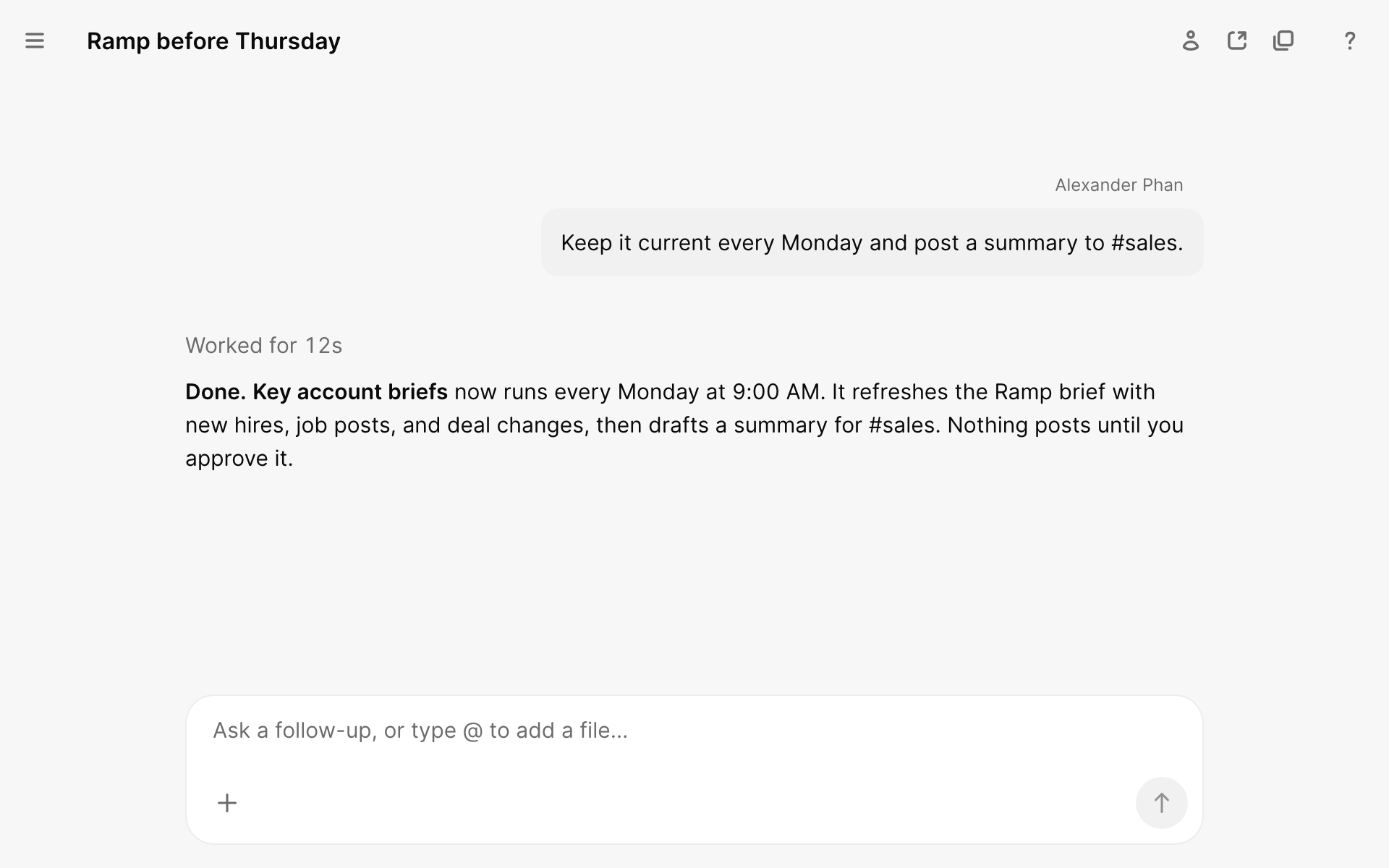
Write it the way you'd ask a teammate. To give GTM more to work with, type @ to add a file from your Library, or select + to add your own.
3 Check the answer
GTM lists each step while it works, like "Searching LinkedIn for Ramp". The answer links to where each fact came from. Ask a follow-up in the same chat to go further.
Things to ask
| To | Ask |
|---|---|
| Prepare for a call | "What changed at Ramp this month? We have a call Thursday." |
| Find people | "Find heads of sales at fintech companies in New York." |
| Make something | "Write a one-page brief on Linear and save it to my Library." |
| Set up an agent | "Make an agent that tells me when Ramp posts a sales job." |
When GTM finds people and companies for you, it saves the ones that pass its checks to your Directory. Files it makes go to your Library.
Who can see a chat
| Setting | Who can see it |
|---|---|
| Your workspace | Everyone in your workspace can see the chat and reply |
| Only you | Just you |
To change it, select the share button at the top of the chat and choose under General access. If GTM used one of your personal accounts, like your Gmail, the chat stays Only you.
Find a chat
Your chats are listed in the sidebar, newest first. To narrow them down, filter by All chats, Only you, Web, Slack or AI tools.
Right-click a chat to Pin to top, Rename, Copy link, Make private or Delete chat.
What did you think of this content?