Send from your domain

Once your domain is ready, each agent gets its own address on it, like tuck@agents.acme.com. Set it as the sender for first emails, and replies come to your Inbox.
Where
Settings → Email
You'll need
A connected domain
Result
First emails come from your agents' addresses
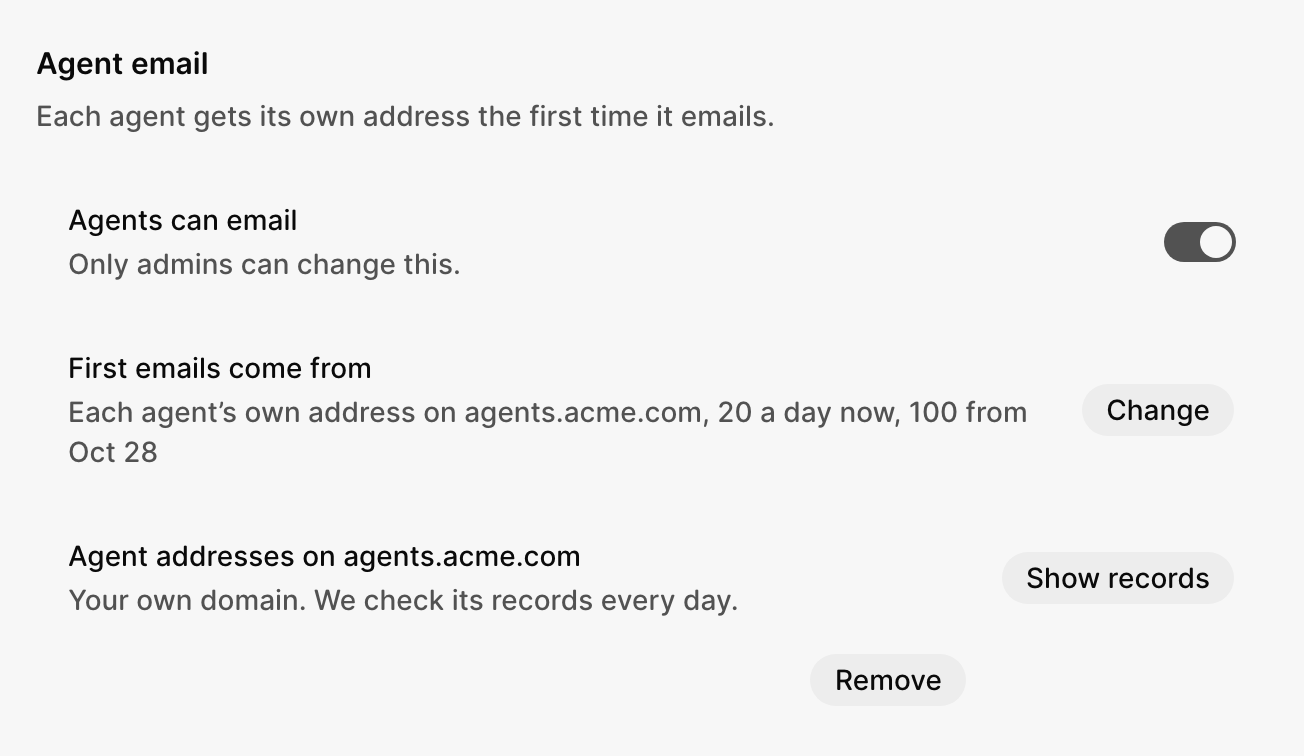
Make it your sender
1 Open Settings → Email
Next to First emails come from, select Change.
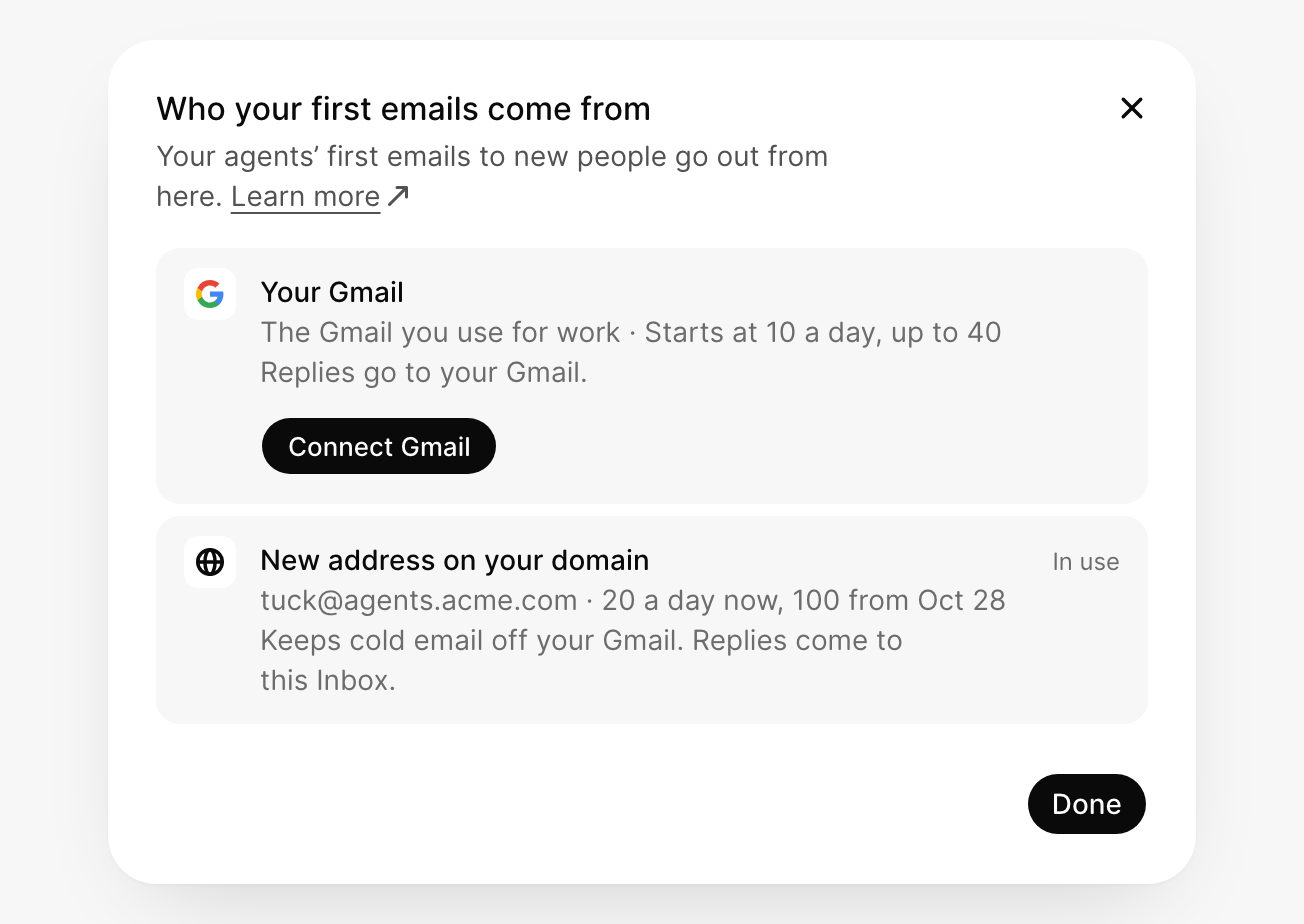
2 Select Use this under New address on your domain
Then select Done. It shows In use when it's on.
How addresses work
| Question | Answer |
|---|---|
| Each agent's address | Its name on your domain, like tuck@agents.acme.com |
| When it's made | The first time the agent sends an email |
| Where replies go | Your Inbox |
| Before your domain is ready | Agents use their address on mail.gtmworkmail.com |
How much it sends
A new domain needs time to earn inboxes' trust, so it starts small. This limit is for your whole team.
| Days | Emails a day |
|---|---|
| 1 to 3 | 20 |
| 4 to 7 | 50 |
| After that | 100 |
Keep it working
For a domain you connected, GTM checks its records every day. If one goes missing, Settings → Email says agents.acme.com is missing a record, with your domain's name. An admin selects Fix it.
Remove a domain
An admin selects Remove next to the domain in Settings → Email. Changed your mind? Select Undo.
Keep its DNS records until the date GTM shows, so late replies still reach you.
What did you think of this content?