Agents

An agent is a helper that does one sales job for you, again and again. It works on a schedule or when you ask, and by default checks with you before it writes to anyone.
For example: "When a company we'd sell to raises money, tell me who raised and why they fit."
Where
Agents in the sidebar
You'll need
Nothing. Ideas are ready to start.
Result
A helper that works on its own and checks with you
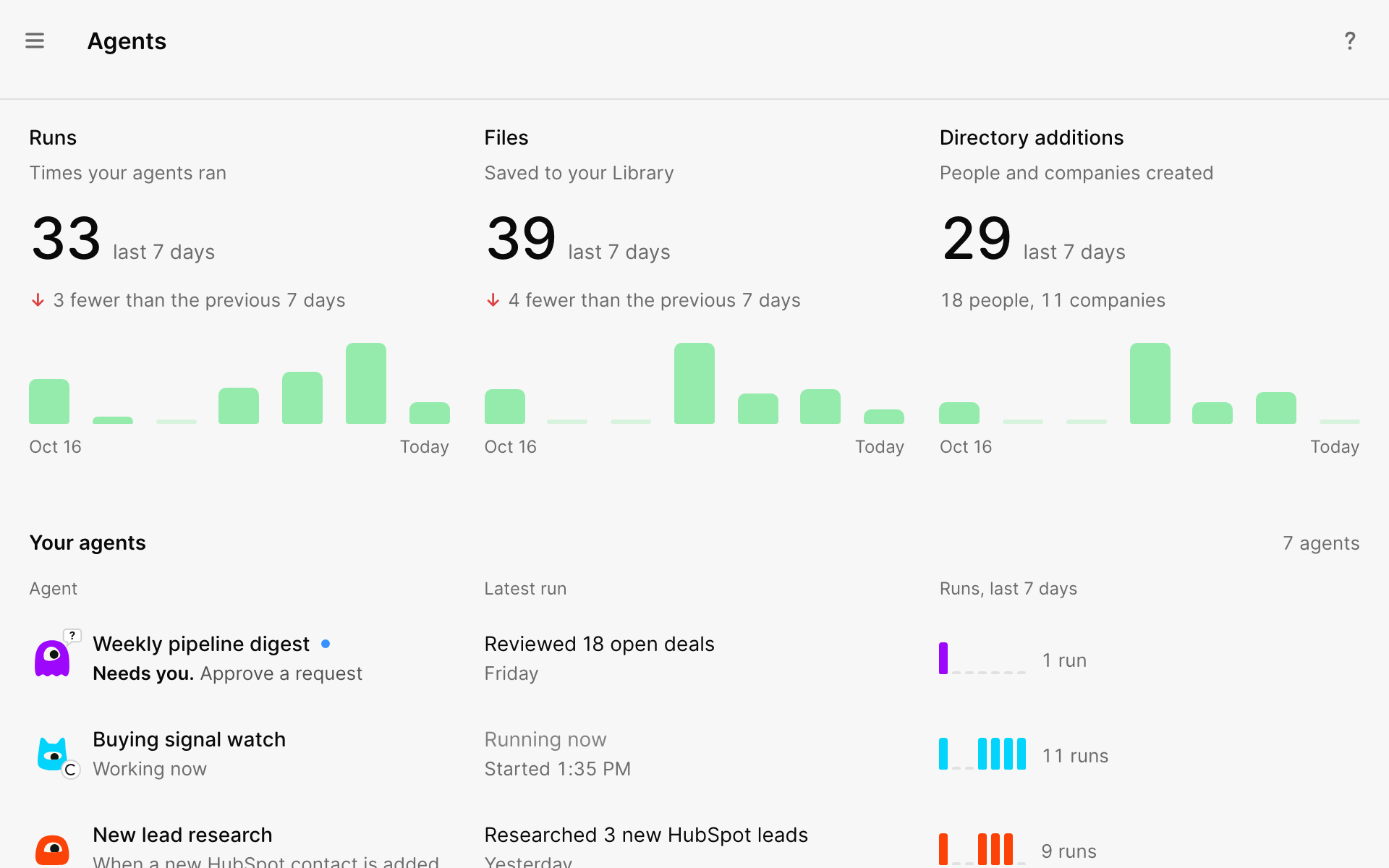
What agents can do
| Goal | Example |
|---|---|
| Find companies to sell to | Tell you when a company that fits your ICP raises money |
| Find people to talk to | Tell you when a contact starts a new job |
| Know when to follow up | Tell you when a deal goes quiet |
| Keep up with your accounts | Tell you when a competitor announces news |
Start an agent
1 Open Agents and select New agent
You'll see ideas grouped by goal, like Find companies to sell to. Ideas under From your apps start when something happens in an app you've connected.
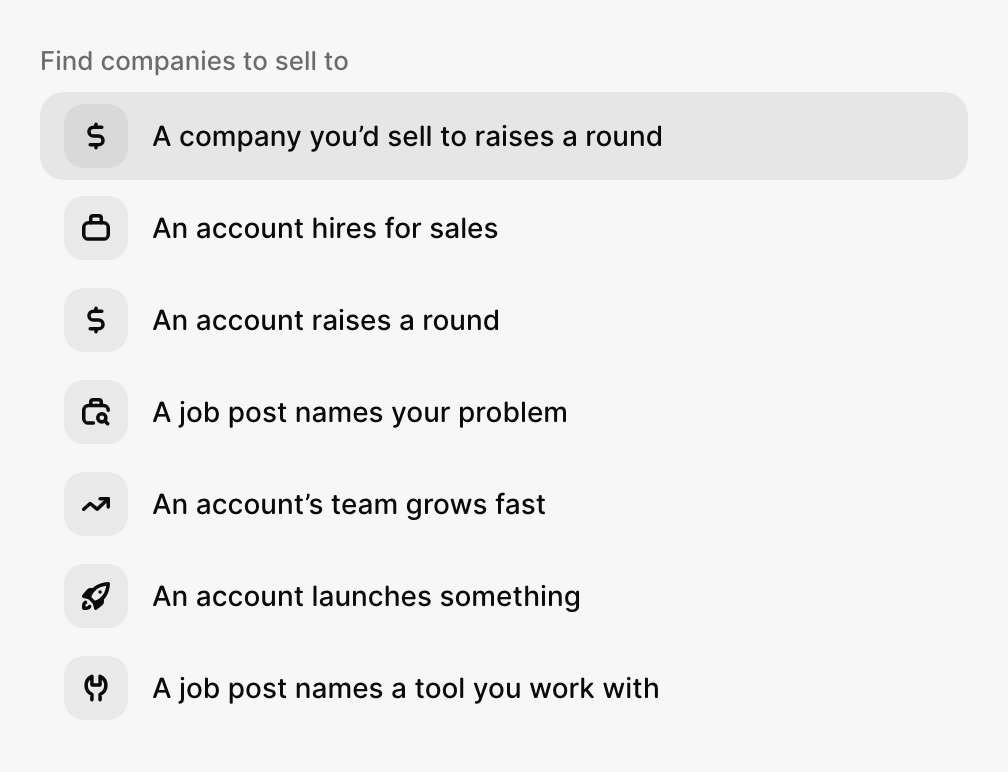
2 Pick an idea, or describe your own
Each idea shows When it acts, what Your agent does and what You get. To make your own, type the job in plain words in the search box, like "tell me when Ramp hires salespeople."
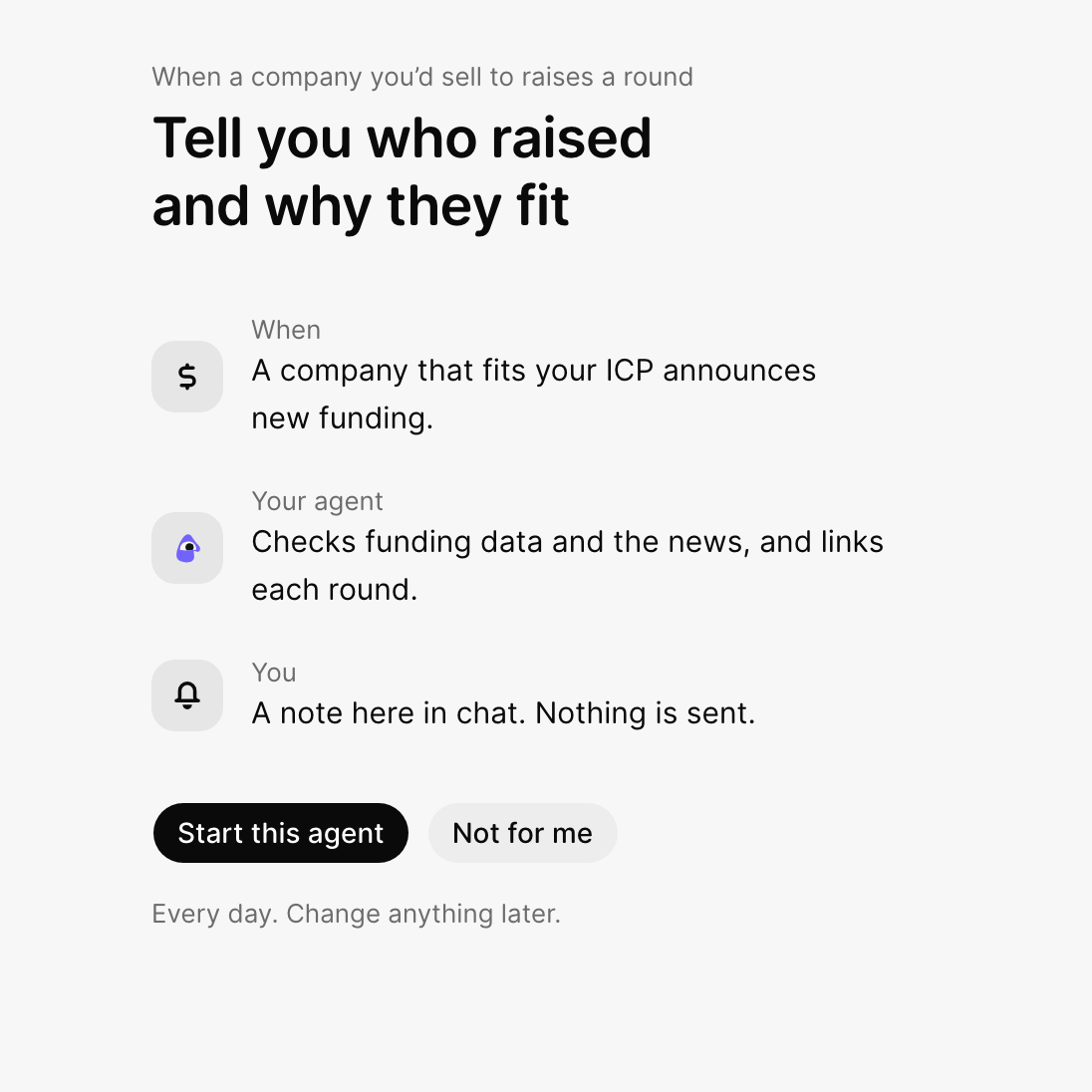
3 Select Start this agent
It may ask a question first, like which companies to watch. Answer in its chat.
You can also ask in any chat: "Make an agent that tells me when Ramp posts a sales job."
See and change its settings
Open an agent and select ⋯ → Agent settings. Everything it does is listed there.
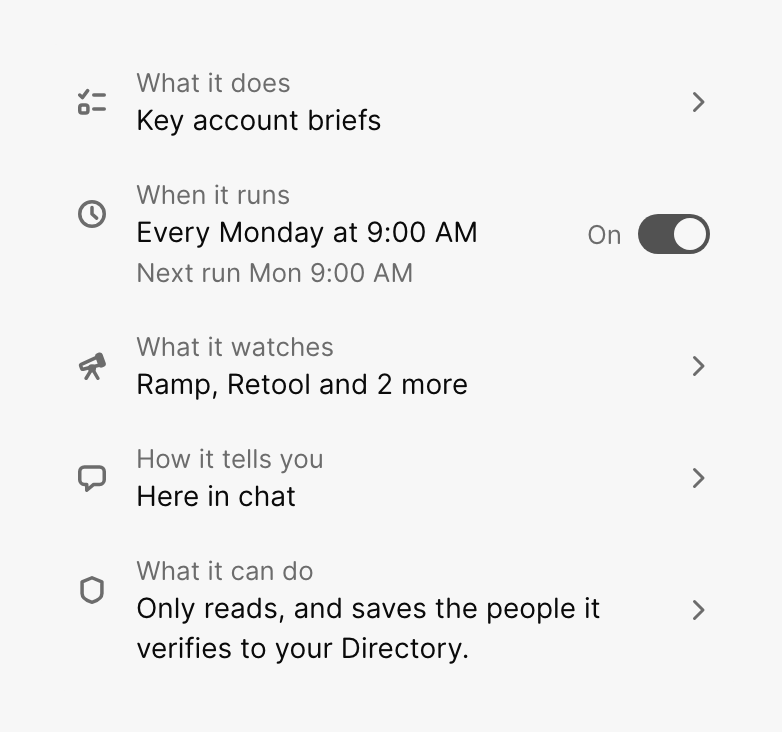
| Setting | What it means |
|---|---|
| What it does | Its job, in plain words |
| When it runs | Only when you ask, on a schedule or when something changes, like a  HubSpot deal moving stage HubSpot deal moving stage |
| What it watches | The companies or people it keeps an eye on |
| How it tells you | In its chat, and in  Slack if you turn it on Slack if you turn it on |
| What it can do | What it may do without asking you |
What it does without asking
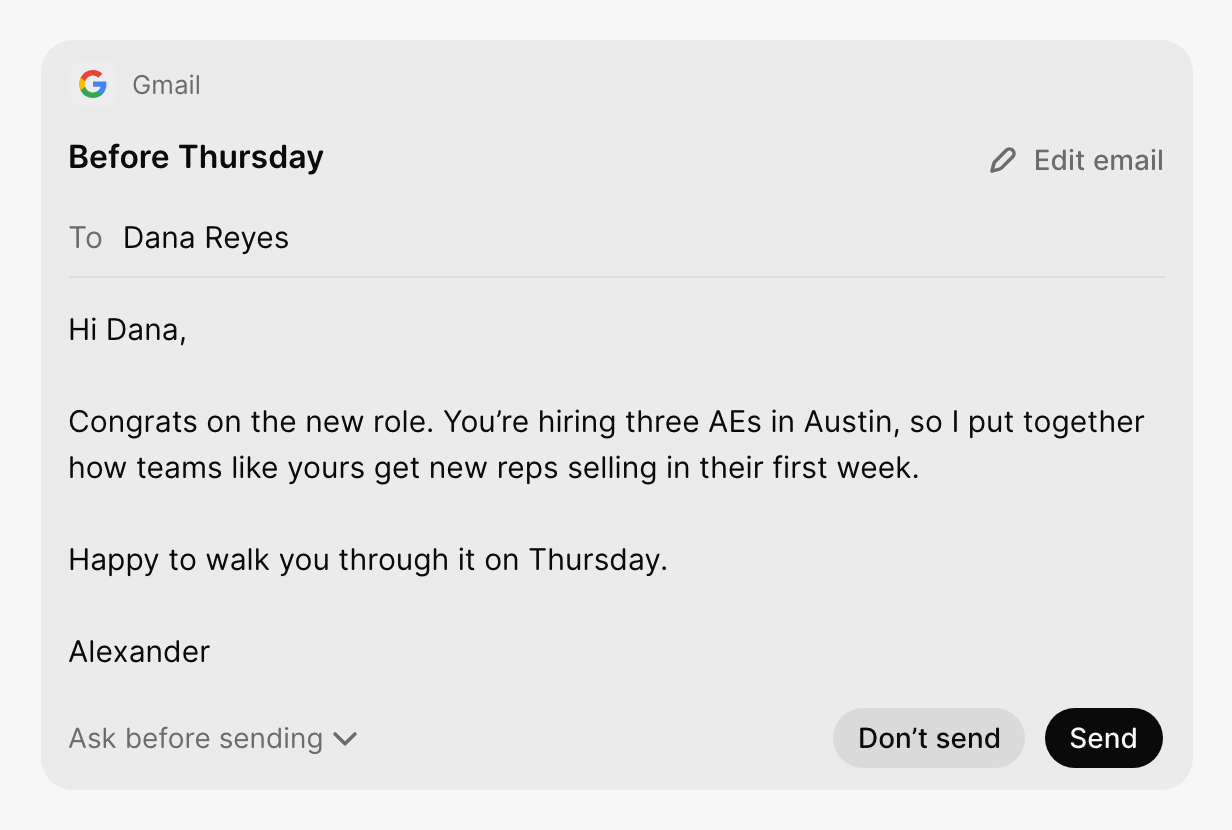
Agents look things up and keep your records current on their own. Anything that reaches a real person waits for you.
| Action | By default |
|---|---|
| Research companies and people | On its own |
| Update CRM and Directory records | On its own |
Send an  email email |
Waits for your OK |
Send a  LinkedIn request or message LinkedIn request or message |
Waits for your OK |
Trust an agent's drafts? Open Ask before sending on a draft and let it send without asking for 1 day, 7 days or until you turn it off. To stop it updating records on its own, turn off Update records without asking in Agent settings.
Talk to your agent
Every agent has its own chat. Ask it to run now, change its job or explain what it found. Drafts appear there with Send and Don't send.
Where its work shows up
| What | Where |
|---|---|
| Reports and answers | The agent's chat |
| Emails and LinkedIn drafts | Inbox |
| People and companies it checks | Directory |
| Files and sheets | Library |
Pause, stop or delete
| To | Do this |
|---|---|
| Pause it | Select ⋯ → Pause |
| Stop a run | Select Stop this run in its chat |
| Delete it | Select ⋯ → Delete. Select Undo, or restore it later from Settings → Data → Deleted agents. It comes back paused. |
Who can see it
Your team can see the agents you start, unless you make one private or it uses your own email, calendar, files or private notes. See Share an agent.
What did you think of this content?